- Destinations
Cart - Search
How to use your
Velome eSim
Connect in Minutes
Step 8 / 15
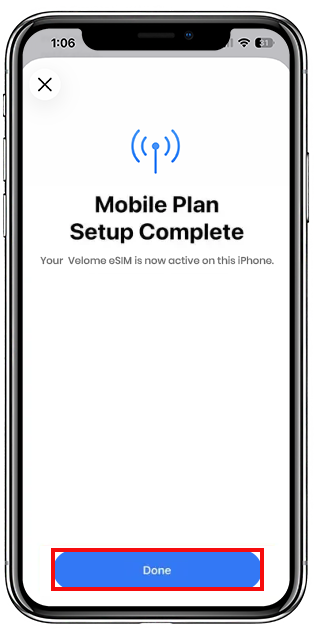
Once everything is complete, tap Done
Step 9 / 15
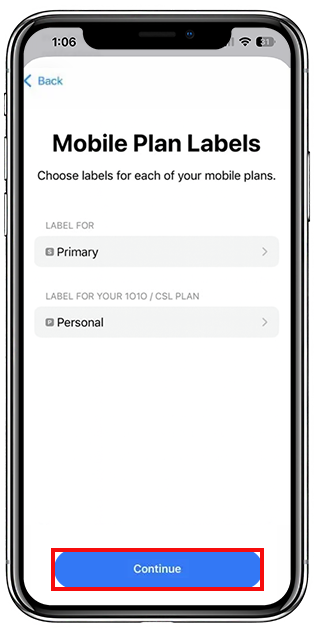
In this section you can label your plan, just select the eSim that you scanned (in this case the phone has automatically labeled it as 'Personal')
Step 10 / 15
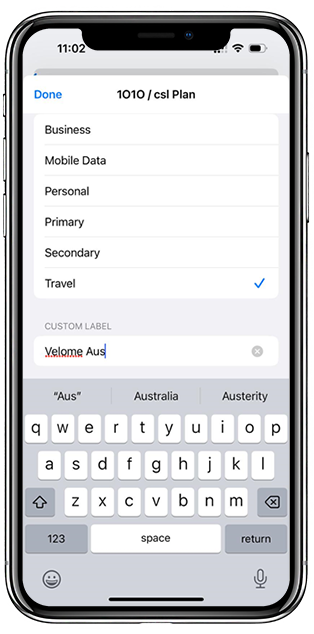
After clicking on the eSim Label, you will be prompted to name it, now either you can just select it as 'Travel' or can give it a custom name, we recommend 'Velome' + 'the name of the destination it is for', in this case Velome Aus.
Step 11 / 15
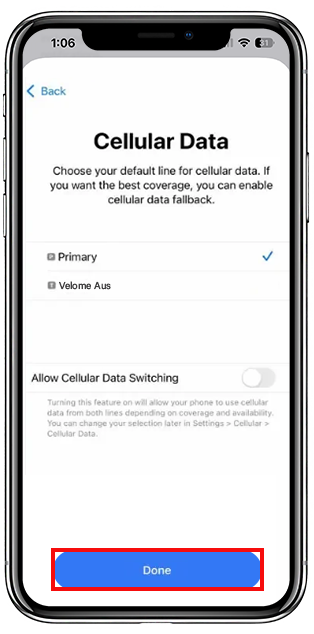
Here you can set the default line for phone calls & standard SMS, this needs to always be set as your Primary, as Velome only offers Travel Data.
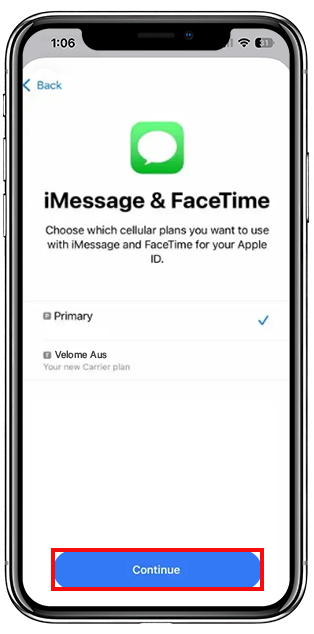
Step 12 / 15
Select Primary here as well.
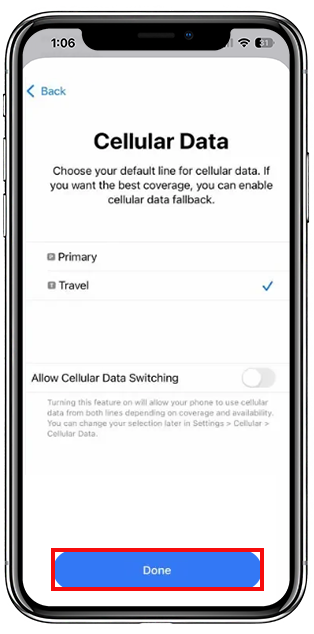
Step 13 / 15
Select Travel as your cellular data line here, and remember to keep 'Allow Cellular Data Switching' or 'Allow Mobile Data Switching' toggle off
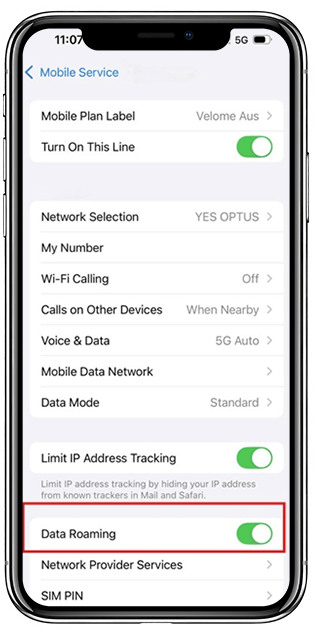
Step 14 / 15
Open up your Velome Travel eSim settings and make sure that Data Roaming is enabled, remember to check if your Primary SIM's data roaming is off and only Velome Travel eSim's Data Roaming is on.
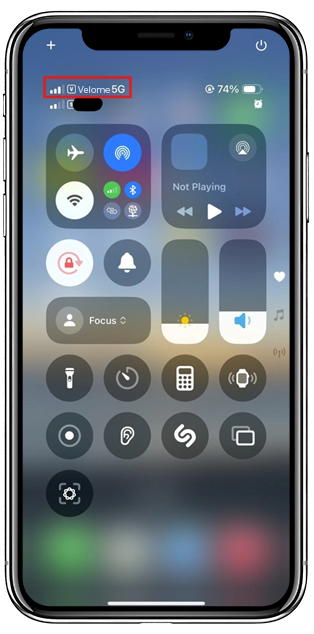
Step 15 / 15
You're connected! Enjoy Unlimited Travel Data from your friends at Velome!
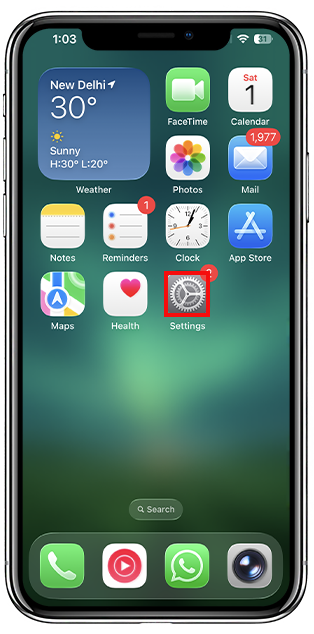
Step 1 / 15
From the home screen, tap on the Settings app.
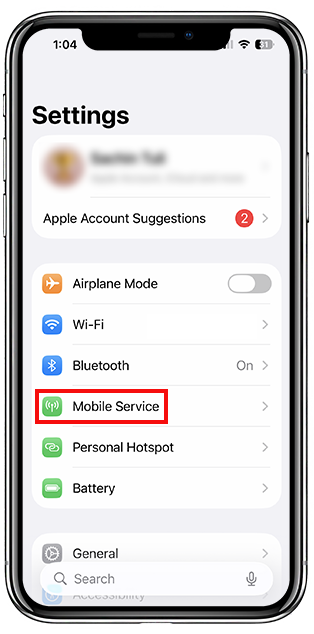
Step 2 / 15
From here, tap on Mobile/Cellular
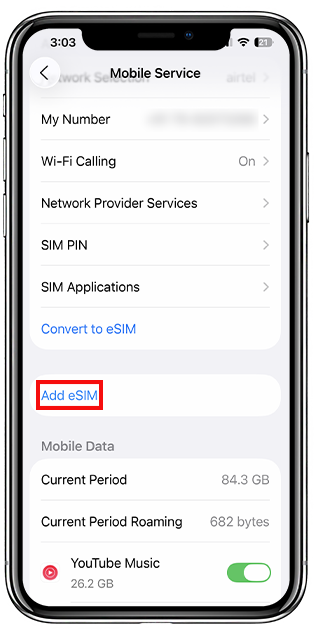
Step 3 / 15
Select Add eSIM
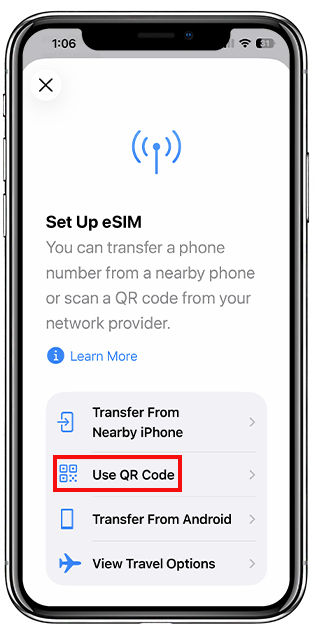
Step 4 / 15
Tap on Use QR Code
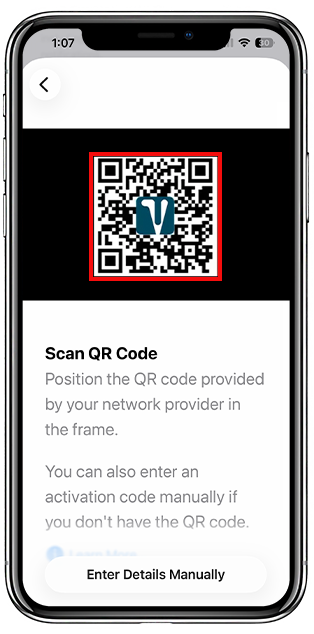
Step 5 / 15
Scan the QR code that you recieved via email, you may have to send the code to another device in order to scan it
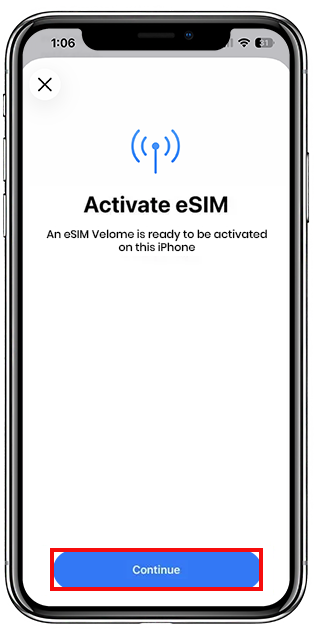
Step 6 / 15
You should see the description of the chosen eSIM provider, tap on continue to get the process started
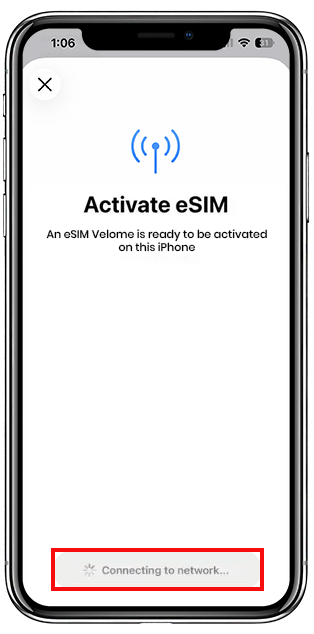
Step 7 / 15
Check out the button on the bottom of the screen as it will give you an update on the installation progress
Step 8 / 15
Once everything is complete, tap Done
Step 9 / 15
In this section you can label your plan, just select the eSim that you scanned (in this case the phone has automatically labeled it as 'Personal')
Step 10 / 15
After clicking on the eSim Label, you will be prompted to name it, now either you can just select it as 'Travel' or can give it a custom name, we recommend 'Velome' + 'the name of the destination it is for', in this case Velome Aus.
Step 11 / 15
Here you can set the default line for phone calls & standard SMS, this needs to always be set as your Primary, as Velome only offers Travel Data.
Step 12 / 15
Select Primary here as well.
Step 13 / 15
Select Travel as your cellular data line here, and remember to keep 'Allow Cellular Data Switching' or 'Allow Mobile Data Switching' toggle off
Step 14 / 15
Open up your Velome Travel eSim settings and make sure that Data Roaming is enabled, remember to check if your Primary SIM's data roaming is off and only Velome Travel eSim's Data Roaming is on.
Step 15 / 15
You're connected! Enjoy Unlimited Travel Data from your friends at Velome!
Step 1 / 15
From the home screen, tap on the Settings app.
Step 2 / 15
From here, tap on Mobile/Cellular
Step 3 / 15
Select Add eSIM
Step 4 / 15
Tap on Use QR Code
Step 5 / 15
Scan the QR code that you recieved via email, you may have to send the code to another device in order to scan it
Step 6 / 15
You should see the description of the chosen eSIM provider, tap on continue to get the process started
Step 7 / 15
Check out the button on the bottom of the screen as it will give you an update on the installation progress
Step 8 / 15
Once everything is complete, tap Done
Need help? Start with our FAQs
What is Velome eSIM and how does it work?
Velome eSIM is a digital SIM card that gives you mobile data without needing a physical SIM. You just scan a QR code, activate it on your phone, and connect instantly, anywhere in the world. No swapping SIM cards, no airport queues.
Why should I use Velome instead of roaming or local SIMs?
Because it's faster, easier, and way more affordable. Instead of paying heavy roaming charges with your home network when you travel abroad, Velome connects you instantly to the best local carriers in your destination. You skip airport SIM queues, get faster speeds, and save big, all while enjoying seamless data in 200+ destinations.
Can I use Velome eSIM for my entire international trip?
Yes! Once you activate your plan, you stay connected wherever you go, from airport layovers to local cafes.
Why do I need to complete KYC?
For Indian nationals, KYC is mandatory as per government regulations when purchasing international SIM/eSIM services.
How do I verify my identity?
We use Digital KYC via DigiLocker. You just need your Aadhar number and linked mobile for OTP verification. It takes less than 2 minutes.