Want to activate an eSIM on your iPhone but not sure where to start?
You're in the right place. Whether you're switching to your first eSIM or moving from a physical SIM, this step-by-step guide will walk you through the entire process in simple terms.
And rest assured as we'll not use any tech jargon and all you get is just clear instructions that you can follow.
Let's dive in.
Which iPhones support eSIM (and how to check)
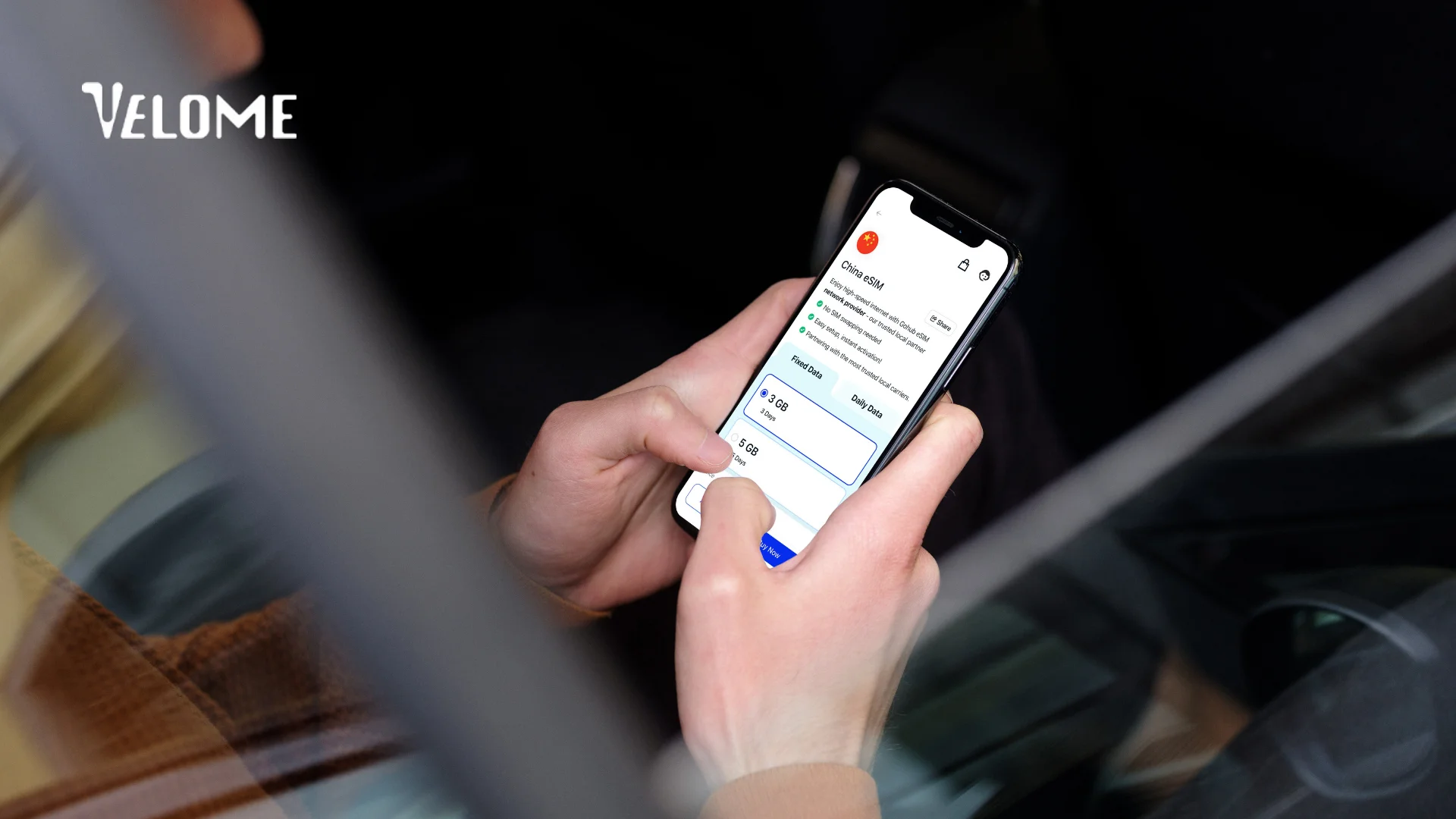
Before we get excited, let's make sure your iPhone is eSIM-ready.
Good news is if your phone came out in 2018 or later, you're almost definitely covered.
Hard to get?
Here's the simple rule:
If you have iPhone XR or newer, you're good to go.
Still, here's the quick breakdown for clarity:
iPhones that support eSIM
These models support using one or more eSIMs. Most of these models (except US versions of the 14-17 series) also support a physical nano-SIM card, allowing for Dual SIM use (eSIM + physical SIM or two eSIMs).
- iPhone XS, XS Max, XR (first models with eSIM — 2018)
- iPhone SE (2nd Gen, 2020), SE (3rd Gen, 2022)
- iPhone 11 series (11, 11 Pro, 11 Pro Max)
- iPhone 12 series (12, 12 mini, 12 Pro, 12 Pro Max)
- iPhone 13 series (13, 13 mini, 13 Pro, 13 Pro Max)
- iPhone 14 series (14, 14 Plus, 14 Pro, 14 Pro Max)
- iPhone 15 series (15, 15 Plus, 15 Pro, 15 Pro Max)
- iPhone 16 series (16, 16 Plus, 16 Pro, 16 Pro Max, 16e)
- iPhone 17 series (17, 17 Plus, 17 Pro, 17 Pro Max)
- iPhone Air (eSIM-only worldwide)
US Models (14 and newer):These are eSIM-only; no physical SIM tray.
iPhones that don't support eSIM

If you're using one of these, you'll need to stick with a physical SIM:
- iPhone 6, 6S, 6 Plus, 6S Plus
- iPhone 7, 7 Plus
- iPhone 8, 8 Plus
- iPhone X (the original 2017 model, not the XS or XR)
So, if you bought your iPhone before late 2018 (and it's not a restricted region variant), it probably isn't eSIM compatible/supports eSIM
How to check if your iPhone supports eSIM
Universal method for all iPhones and Android phones
Dialer code method (works on every device)
- Step 1:Open your phone's Dialer/Phone app.
- Step 2: Dial this code: *#06#
- Step 3 A screen will pop up with your device details
How to read the result:
- If you see an EID number along with your IMEI ? Your phone supports eSIM
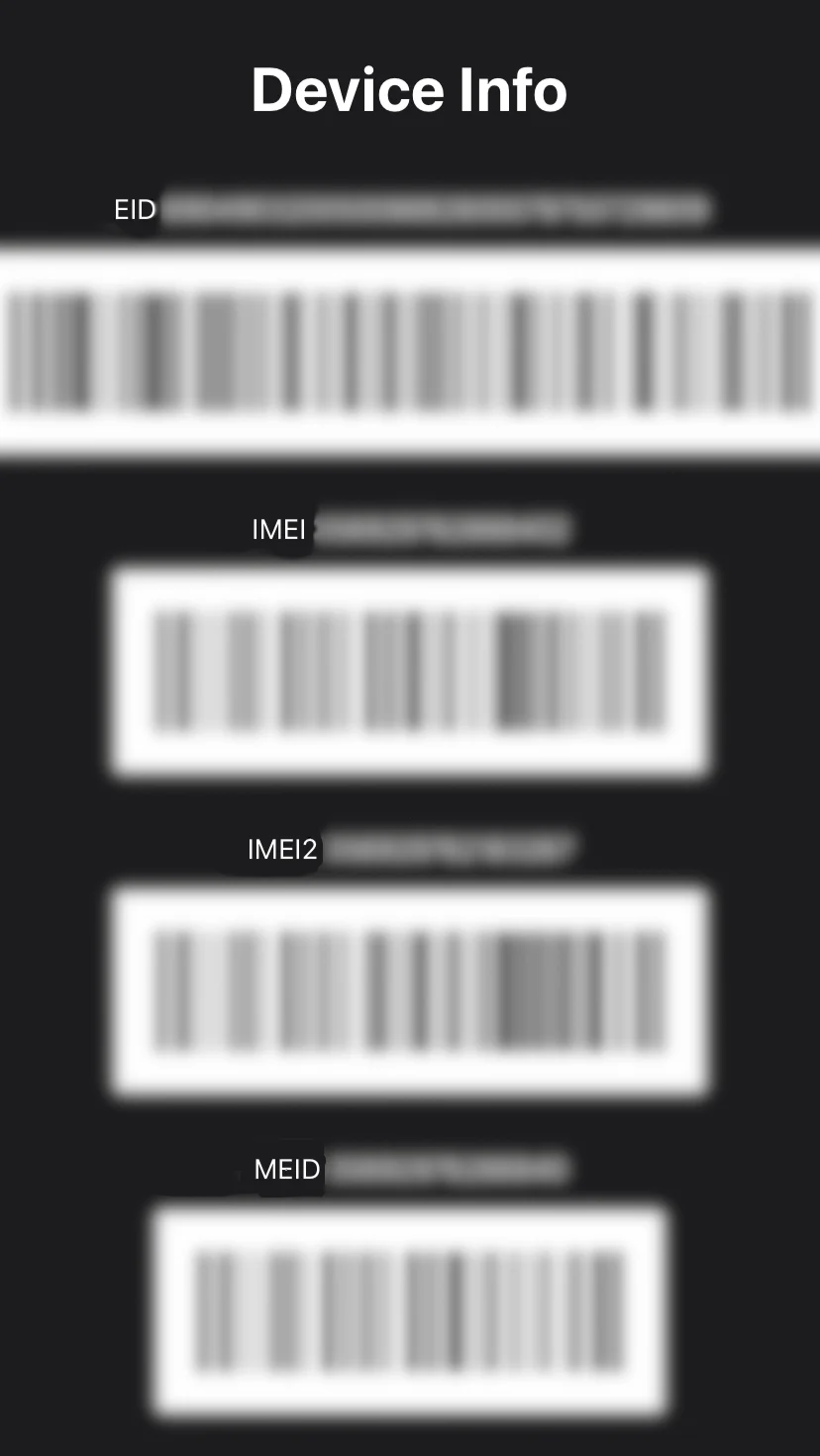
- If you only see IMEI and no EID ? Your phone does not support eSIM
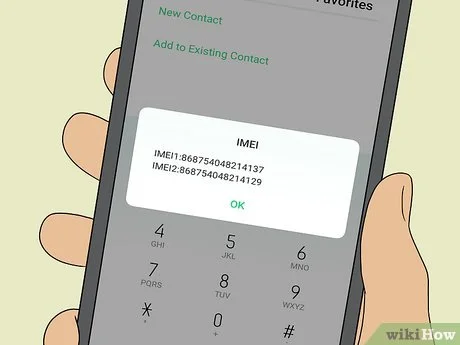
Source:wikiHow
Check through your phone settings
1. Open Settings
2. Tap Cellular (or Mobile Data / Mobile Service)
3. Scroll down and look for the option to "Add eSIM" or "Add Cellular Plan".
If you see that button, congratulations, your iPhone supports eSIM.
If you don't see it? It's time for an upgrade.
Embed video:
How to check if your iPhone supports eSIM - YouTube
How to activate eSIM in iPhone (11, 12, 13, 14 & newer): Step-by-step guide
Alright, let's get to the main part. This works whether you're activating your first eSIM or switching from a physical SIM.
Works for: All iPhones with eSIM including iPhone XR, 11, 12, 13, 14, 15, and newer models.
Tip before you start:
1. Make sure your iPhone is unlocked (check in Settings > About > Network Provider Lock for “No SIM restrictions”).
2. You're connected to Wi-Fi or mobile data, eSIM activation requires internet.
Now, you're all set on how to activate an eSIM on your iPhone.
Activate using QR code (carrier activation)
Embed video:
How to check if your iPhone supports eSIM - YouTube
Step 1: Go to
- Settings ? Cellular (or Mobile Service / Mobile Data)
- Tap Add eSIM or Add Cellular Plan
- Tap Use QR Code
Step 2: Scan your carrier's QR code
- Position the QR code you received from your carrier (Jio, Airtel, Vi, or other) in the frame.
Step 3: Tap “Add Cellular Plan”
- Your iPhone will download the eSIM profile.
Step 4: Tap “Continue”
- Wait for activation and restart your iPhone if prompted.
Tip: After activation, your eSIM may appear with a generic label, see “Labelling” steps below for clarity.
Activate via carrier app
Step 1: Open your carrier's app (MyJio / Airtel Thanks / MyVi)
Step 2: Find "Activate eSIM" and follow the on-screen instructions
- You may need to enter your EID (find this in Settings > General > About) and IMEI (also in About).
Step 3: Complete OTP or call verification
Step 4: Your eSIM profile will be downloaded and activated in 15 minutes to 2 hours
Embed video:
How to check if your iPhone supports eSIM - YouTube
Embed video:
How to check if your iPhone supports eSIM - YouTube
Embed video:
How to check if your iPhone supports eSIM - YouTube
Note: Vi's eSIM service isn't available in Himachal Pradesh, Jammu & Kashmir, Odisha, the Northeast, or Assam.Note: Vi's eSIM service isn't available in Himachal Pradesh, Jammu & Kashmir, Odisha, the Northeast, or Assam. Vi's eSIM service isn't available in Himachal Pradesh, Jammu & Kashmir, Odisha, the Northeast, or Assam.
C. Manual setup (if QR code doesn't work)
Embed video:
How to check if your iPhone supports eSIM - YouTube
Step 1: Go to:
- Settings & Cellular (or Mobile Data/Mobile Service)
- Tap Add eSIM (or Add Cellular Plan)
- Tap Enter Details Manually
Step 2:Enter the following details:
- SM-DP+ Address: This is the server address provided by your carrier (e.g., "smdp.example.com"). It connects your iPhone securely to the eSIM activation server.
- Activation Code: Supplied by your carrier, usually found in the activation email.
- Confirmation Code (if requested): Some carriers provide this.
Where to get SM-DP+ Address?
You receive it from your carrier in the activation email or SMS when you request eSIM. Usually, it looks like a domain name (e.g., "smdp.xxxxx.com") often with a unique code attached.
Step 3: Tap Next, then "Add Cellular Plan".
- Your iPhone will fetch and install the profile, taking a few seconds to 10 minutes.
Label your eSIM (How to set name/label)
Embed video:
How to check if your iPhone supports eSIM - YouTube
Default labels ("Secondary", "Travel", etc.) can be confusing if you have several plans. Rename them for easy management:
1. Go to Settings
2. Tap "Cellular" (or "Mobile Data" / "Mobile Service")
3. Under SIMs or Cellular Plans, tap your eSIM line
4. Tap "Cellular Plan Label"
5. Enter your preferred name, such as "Jio", "Work Line" or 'Airtel" (you can add emojis if you wish) and tap "Done".
This custom name will also appear in Phone, Messages and Contacts apps, helping you identify which plan you’re using at all times.
Choose your primary SIM (how to select)
Decide which SIM handles calls, messages, and data by setting the default line:
1. Go to Settings > Cellular (or Mobile Data / Mobile Service)
2. Tap "Default Voice Line"
3. Select which SIM or eSIM you want as primary for calls and SMS.
For data:
For data:
- Tap "Cellular Data", then pick the line for internet/data usage.
- If you want automatic switching, enable "Allow Cellular Data Switching".
You can change these choices anytime; both lines remain available for incoming calls/messages if enabled.
Enable data roaming (exactly where to find and how to activate)
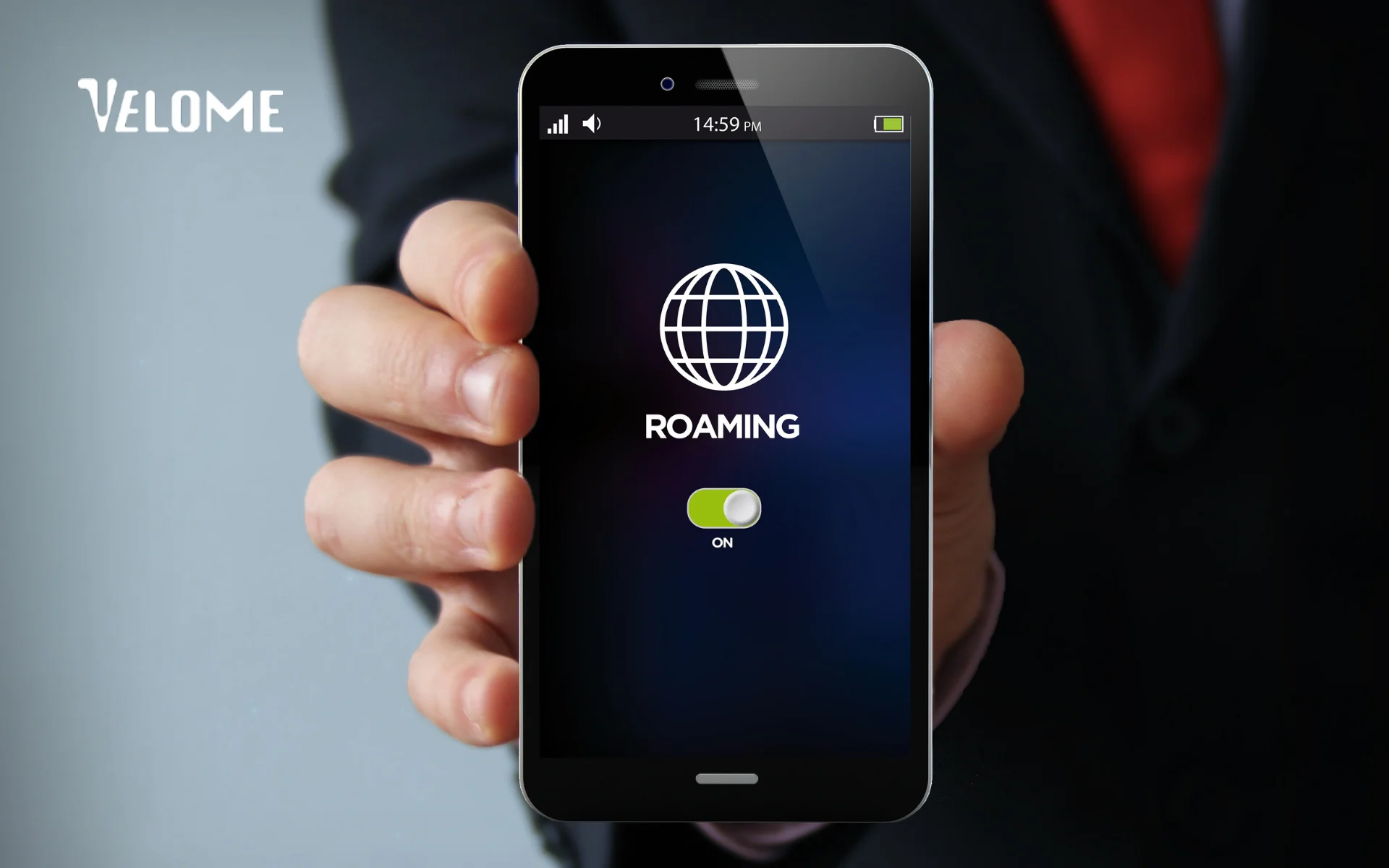
1. Open Settings > Cellular (or Mobile Data / Mobile Service)
2. Tap the eSIM plan you want to use for roaming.
3. Tap "Data Roaming" and toggle ON.
When enabled, your iPhone will show a green checkmark or similar indicator. Wait a moment for the phone to connect to the roaming network.
Test your connection (how to confirm activation)
After setup, make sure your eSIM is working:
- Try making a call from the Phone app.
- Send an SMS or WhatsApp message.
- Open Safari or another app to use mobile data.
You can also check:
- Settings > Cellular (Mobile Data)
- Look for Active or signal bars next to your eSIM plan.
If things don't work, see troubleshooting below.
Troubleshooting: eSIM won't activate? (best-practice fixes)
- Toggle Data Roaming ON/OFF
- Restart your iPhone
- Remove and re-add the eSIM profile (Settings > Cellular > Remove Plan, then Add eSIM)
- Ensure your iPhone's iOS is updated
- Try manual network selection under Settings > Cellular > Network Selection
- Contact your carrier's support if problems persist
Key things to remember about eSIM on iPhone
Before you activate eSIM on iPhone, here are a few things worth knowing 👇
How many eSIMs can be used in an iPhone?
You can store 8 or more eSIM profiles on most iPhones and switch between them instantly (no need to restart your phone).
But the number of active eSIMs depends on your iPhone model:
- iPhone 13 and newer: Can have 2 active lines at once (either 2 eSIMs or 1 eSIM + 1 physical SIM)
- iPhone 12 and older: Can store many profiles, but only 1 active eSIM at a time (plus a physical SIM if needed)
Tip: If you travel often, you can preload multiple eSIMs and switch between them instantly.
What iOS is required for eSIM?
To use eSIM, your iPhone needs iOS 12.1 or later.
But if you want smoother features like eSIM Quick Transfer or dual active eSIMs, keep your iPhone updated to iOS 16 or newer.
Is eSIM good for international travel?
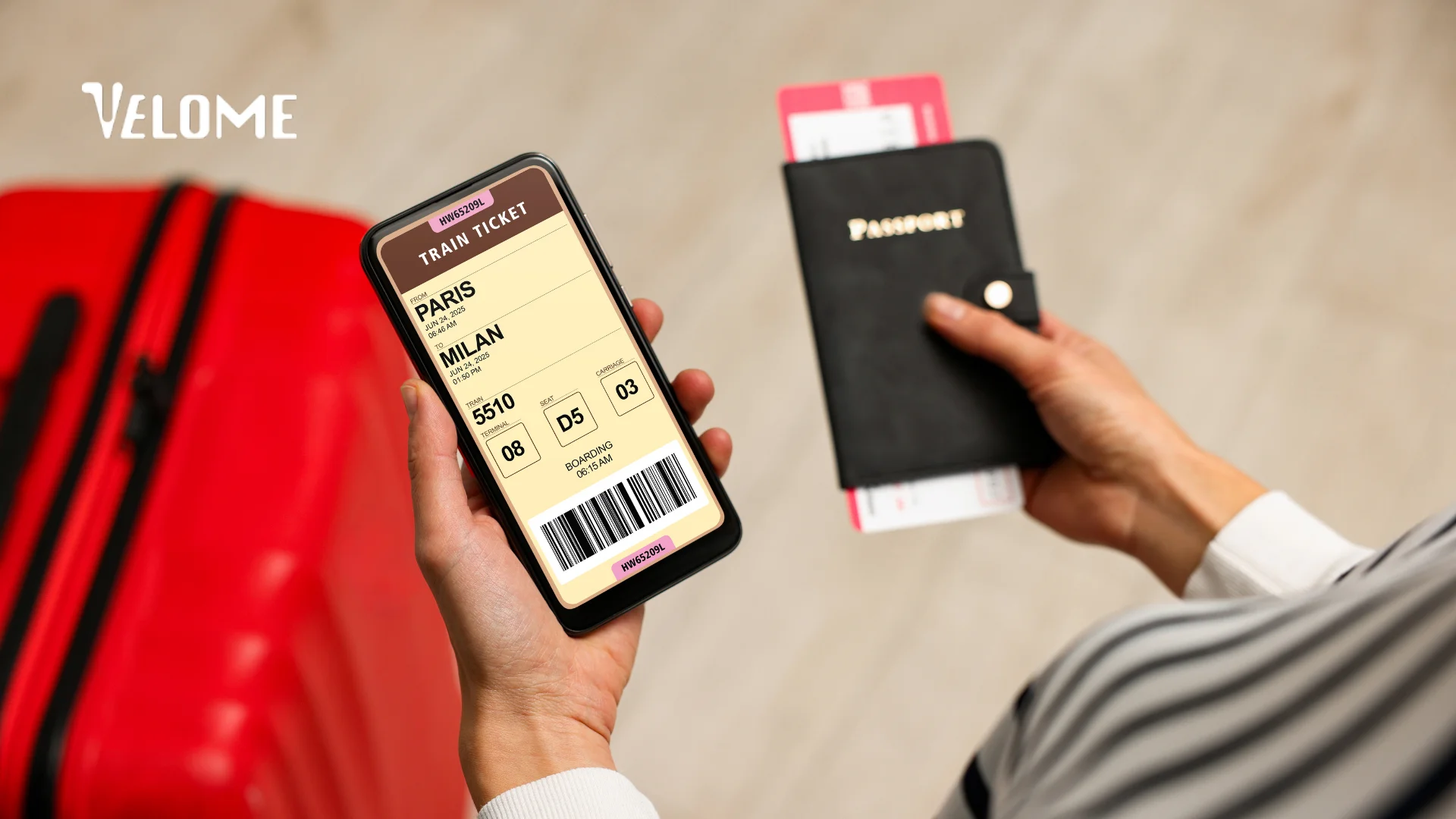
magine this: you reach a new country, turn on your phone, and the internet starts working right away. No searching for SIM cards, no long lines, no waiting. That's how easy travel feels with an eSIM.
With Velome, it's even simpler. We work with top mobile networks in many countries to give travelers from India unlimited data plans. You can set up your Velome eSIM in just a few minutes on your phone and start using the internet as soon as you land.
Your old SIM still works for calls and texts, while your Velome eSIM gives you fast internet wherever you go.
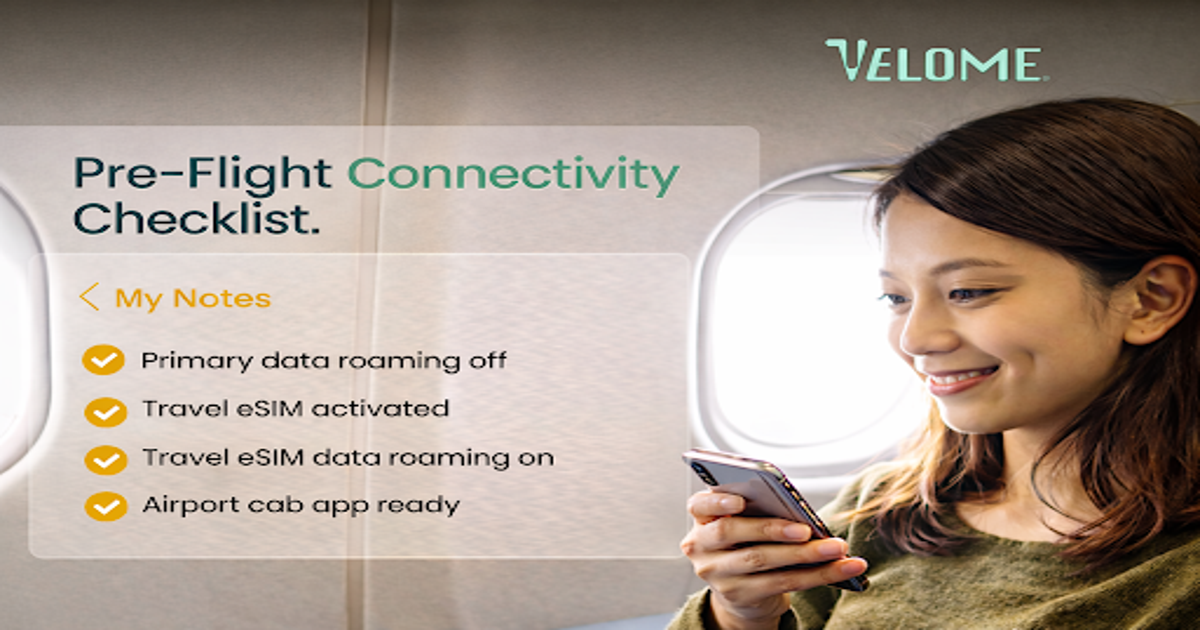
Tip:Before your flight, go to Settings ? Cellular ? [Your eSIM] ? Data Roaming and turn it ON so your eSIM connects as soon as you arrive.
Is eSIM transferable to a new iPhone?
Yes! You can easily move your eSIM to a new iPhone if your carrier supports it.
- On iOS 16 or later, use eSIM Quick Transfer, no QR code needed.
- On older iPhones, contact your carrier to deactivate the old eSIM and get a new QR code.
Note: Once transferred, the eSIM on your old phone is automatically deactivated.
Is it possible to transfer eSIM from iPhone to Android?
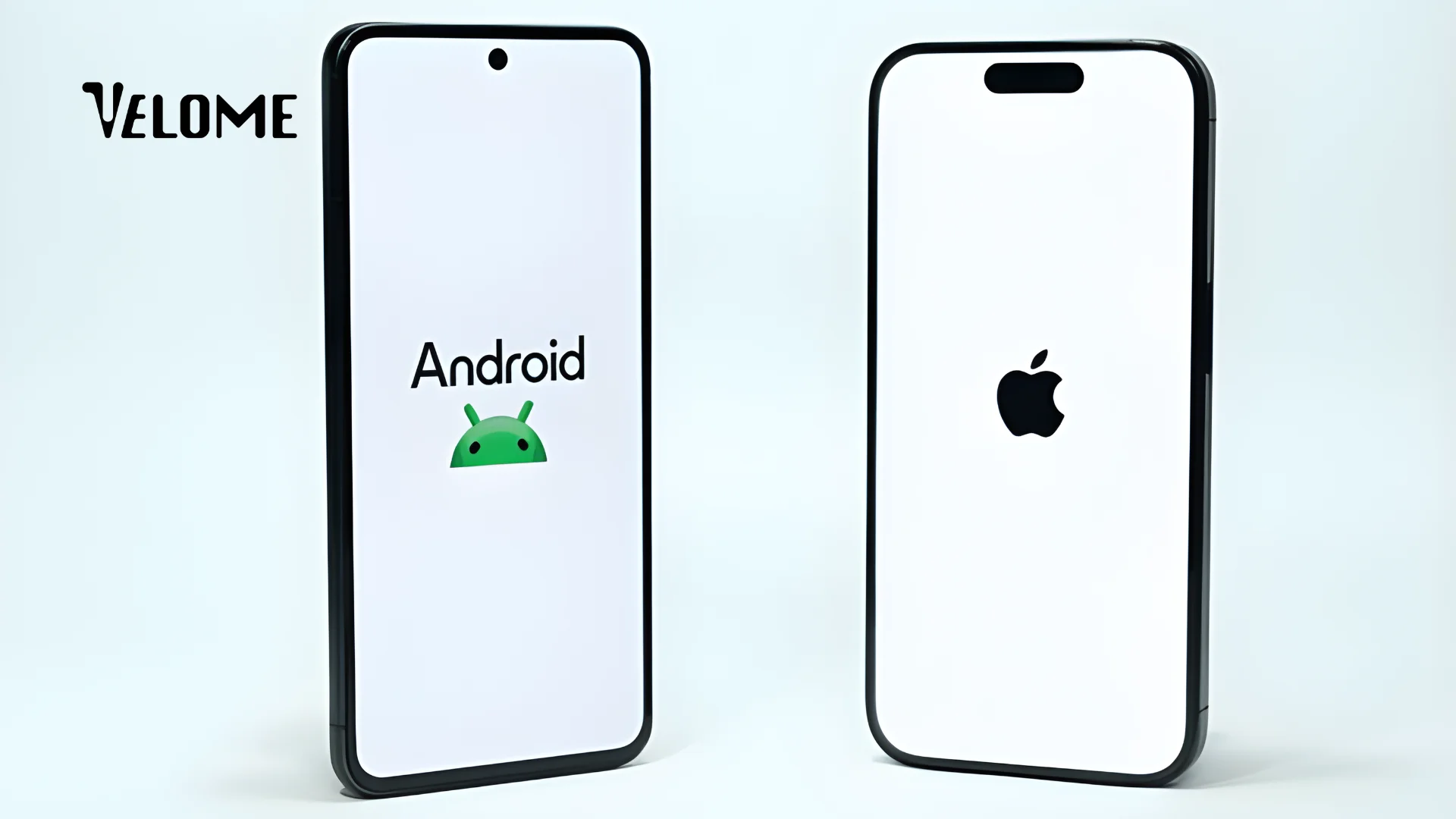
Yes, you can transfer an eSIM from an iPhone to an Android device.
To switch, first remove the eSIM from your iPhone. This tells your carrier that the number is free to move.
Then, contact your carrier (like Jio, Airtel, or Vi) and ask for a new eSIM activation for your Android phone. They'll send you a new QR code or activation link. Your number and plan will stay the same, only the eSIM profile changes.
Tip: Don't delete your old eSIM until the new one starts working. This way, you won't lose your mobile service while switching.
What to do when eSIM doesn't connect?
Try these quick fixes:
- Turn Data Roaming ON for that eSIM line
- Restart your iPhone
- Toggle Airplane Mode ON for 10–30 seconds, then OFF
- Check carrier network availability (manual selection might help)
- Go to Settings ? General ? About to check for carrier updates
- If your iPhone eSIM activation still doesn't work, contact your carrier's support
How to activate an eSIM in iPhone (and why Velome makes it even better)
You know, once you see how simple it is to activate an eSIM on an iPhone, you'll probably wonder why we ever bothered with those tiny SIM cards. No tools, no queues, no waiting, just scan a QR code, tap a few buttons, and you're done.
Still, many people don't realize that eSIMs can do much more than just save space in your phone. They can also make travel easy and affordable.
Saying this because most people still buy a new SIM when they land in another country and end up paying crazy roaming charges. But with a travel eSIM, you can skip all of that. You set it up before your flight, and your internet works the moment you arrive.
That's exactly what we built Velome for, to make staying connected while traveling simple and affordable. We've partnered with top local networks in more than 200 destinations so travelers from India can get fast, reliable unlimited internet without the usual roaming stress.

So whether you're switching from a physical SIM for convenience or setting up your phone for your next trip, give eSIM a try.
And if you want it to be effortless from start to finish, Velome is here to make that happen.
Frequently asked questions about eSIM on iPhone
What happens to my existing physical SIM when I activate eSIM?
It stays active. You get dual SIM functionality. Both can work simultaneously on iPhone 13 and newer. You choose which one handles calls, data, and messaging.
Can I use eSIM and physical SIM at the same time?
Yes. On iPhone 13 and newer, you can have 2 active eSIMs at once (or 1 eSIM + 1 physical SIM). On iPhone 12 and older, you get 1 eSIM + 1 physical SIM.
Do I lose my phone number if I transfer an eSIM?
No. Your number transfers with your eSIM. It’s the same number, just in digital format instead of a plastic card.
Is eSIM secure?
Yes. eSIMs can’t be cloned, stolen from a SIM tray, or swapped without authentication. They’re actually more secure than physical SIMs.
What if I lose my iPhone?
Your eSIM is locked to that device. Someone can’t just pop it into another phone. You can contact your carrier, and they can issue a replacement eSIM on your new device.
Do I need to update iOS to use eSIM?
You need iOS 15 or later. Most iPhones already have this. Check Settings ? General ? About ? Software Version.
How do I activate eSIM on my iPhone step-by-step?
You can activate eSIM on your iPhone by scanning your carrier’s QR code or using your carrier’s app (like Jio, Airtel, or Vi). Go to Settings ? Cellular ? Add eSIM ? scan QR or enter details manually.
 April 29, 2026
 April 23, 2026
 December 19, 2025
 December 19, 2025
 December 16, 2025
 November 4, 2025
 November 4, 2025
 November 3, 2025
 November 3, 2025
 November 3, 2025